![ATX-resized_Prancheta 1-1.png]](https://support.attaxion.com/hs-fs/hubfs/ATX-resized_Prancheta%201-1.png?height=40&name=ATX-resized_Prancheta%201-1.png)
After completing the initial Attaxion setup, you are ready to get the most out of Attaxion. It can help you investigate the technologies and services exposed across your attack surface, generate reports, and use the additional monitoring capabilities to understand your exposure in greater detail and detect infrastructure or domains associated with potential threats.
1. Understand your technology exposure
As Attaxion scans your attack surface, it identifies technologies running on your Internet-facing assets. Open the Technologies tab to review the software, products, and versions detected across your environment.
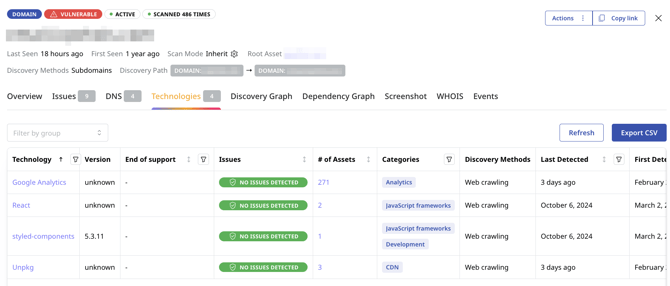
For each technology, you can review:
- the technology name and detected version;
- the assets on which it was found;
- vulnerabilities associated with the technology;
- when it was first and last detected;
- whether it has reached or is approaching the end of its supported life cycle.
Use this information to identify outdated technologies, understand where widely used software is deployed, and determine which assets may be affected by the same technology-related vulnerability.
Learn more from the documentation for the “Technologies” Tab.
2. Review open ports and exposed services
Attaxion detects open ports associated with your external assets and displays them in the Ports tab. Reviewing these ports helps you understand which services are externally accessible and whether they create unnecessary or unexpected exposure.
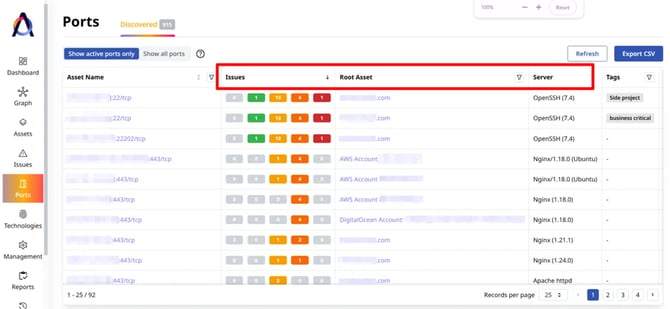
For each port, you can review:
- the port number and protocol;
- the associated asset and root asset;
- detected security issues and their severity;
- technologies associated with the port;
- when the port was first and last detected;
- any tags assigned to it.
Use the Ports tab to look for ports or services that should not be publicly accessible. This information is best combined with one of Attaxion LiveSight’s premium features — Agentless Traffic Monitoring, which can show you ports that are not only open, but are getting connections and traffic.
Learn more in The “Ports” Tab documentation.
3. Generate and share reports
Use Attaxion reports to summarize the vulnerabilities affecting your attack surface and share the results with management, customers, or other stakeholders.
Open Reports from the menu on the left and create a new report. You can select one or more root assets, include their child assets, and decide whether the report should cover only active assets or both active and inactive assets.
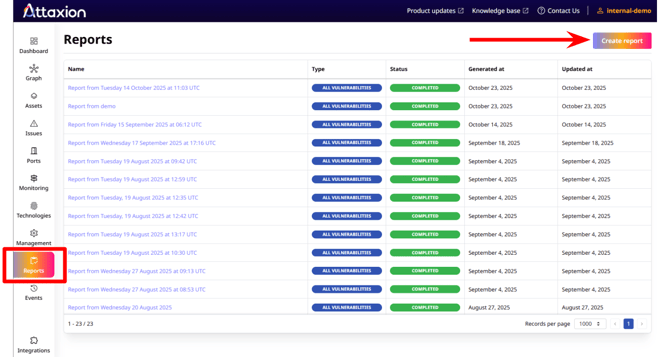
You can further customize the report using filters such as:
- asset groups;
- issue names;
- severity scores and ratings;
- issue status;
- first- or last-seen dates;
- CISA Known Exploited Vulnerabilities.
After configuring the report, generate it as a PDF. The report includes an overview of the identified issues, their severity distribution, recently detected and high-severity vulnerabilities, as well as detailed information about affected assets and recommended mitigation steps.
Learn how to generate and export a vulnerability report.
Extend Attaxion with additional monitoring
Attaxion also provides optional monitoring capabilities that complement asset discovery and vulnerability scanning. Depending on your plan and configuration, you can use them to identify infrastructure associated with known threats, analyze network communications, and monitor domains that may impersonate your organization.
4. [Optional] Monitor infrastructure for indicators of compromise
Open Monitoring → Indicators of Compromise to check whether public IP addresses associated with your attack surface appear in connected threat-intelligence feeds.

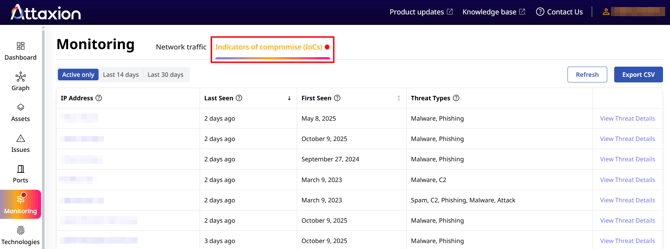
An indicator of compromise, or IoC, is evidence that infrastructure may be associated with malicious or suspicious activity.
Use IoC Monitoring to:
- identify affected IP addresses;
- review the associated threat information;
- determine which assets require further investigation;
An IoC match does not necessarily confirm that an asset has been compromised, but it provides additional context that can help your team prioritize investigation and response.
IoC Monitoring is enabled by default for all accounts, regardless of the plan you’re on.
Learn more in The “IoC Monitoring” Tab Explained.
5. [Optional] Analyze network traffic
Attaxion’s optional Agentless Traffic Monitoring feature provides visibility into communications involving your infrastructure.
Open Monitoring → Network Traffic to review communication events, including:
- source and destination IP addresses;
- source and destination ports;
- inbound or outbound traffic direction;
- communication protocol;
- first- and last-seen dates;
- the number of observed communication events.
You can switch between benign and malicious traffic and select the period you want to analyze. For traffic involving third-party IP addresses with a known bad reputation, Attaxion may also display the associated attack type or malware family.

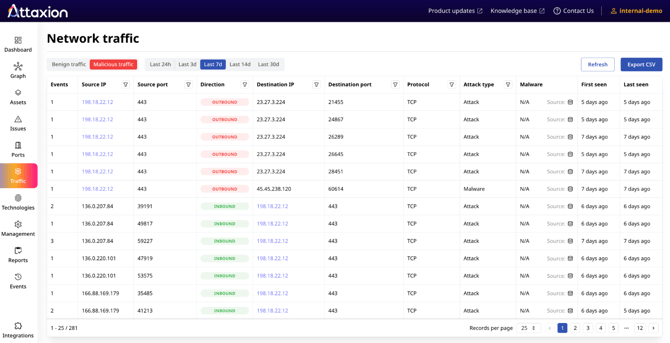
Use this information to identify unexpected connections, investigate communications with malicious infrastructure, support threat-hunting activities, and prioritize vulnerable assets that are communicating with known threats.
Network Traffic Monitoring is an optional feature and is not enabled by default. Reach out to your sales representative to enable this feature for you.
Learn more in The “Network Traffic” Tab Explained.
6. [Optional] Set up brand impersonation monitoring
The Impersonation tab helps you monitor newly registered and recently dropped domains that may imitate your organization, brands, products, or executives.
Start by adding the words or phrases that Attaxion should monitor. These may include:
- your company or brand name;
- product and service names;
- executive names;
- other terms associated with your organization.
You can add exclusions to reduce irrelevant matches and enable typosquatting detection to identify domains that use common misspellings or variations of your monitored terms.

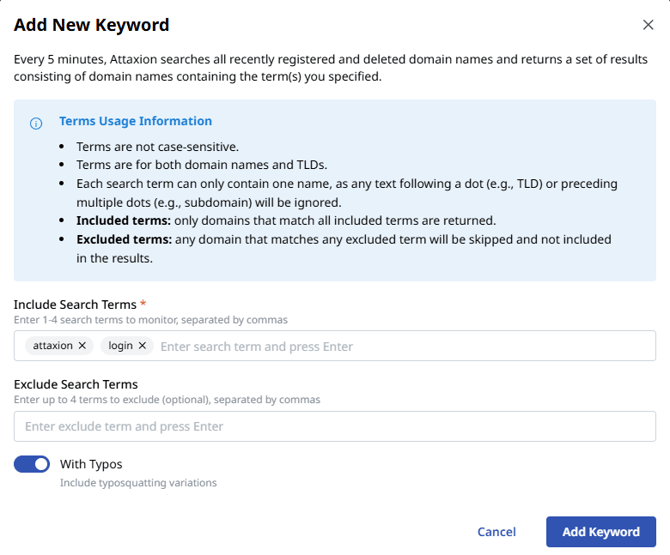
Attaxion continuously searches for matching domains. For each discovered domain, you may be able to review its registration status, reachability, first- and last-seen dates, WHOIS and DNS information, and a screenshot of the hosted website.
Review discovered domains regularly to identify potential phishing, fraud, executive spoofing, or brand-impersonation activity. Refine the included and excluded keywords when necessary to improve the relevance of the results.
Domain Brand Impersonation Monitoring is an optional feature and is not enabled by default. Reach out to your sales representative to enable this feature for you.
Learn more in The “Impersonation” Tab Explained.
Continue exploring Attaxion
This guide covers several of Attaxion’s main investigation, reporting, and monitoring capabilities. Explore the rest of the Attaxion knowledge base to learn more about asset discovery, scanning, vulnerability detection, account management, and other platform features.
If you have questions or something is not working as expected, select Contact Us in the upper-right corner of the Attaxion interface. Our team will help you investigate and resolve the issue.