![ATX-resized_Prancheta 1-1.png]](https://support.attaxion.com/hs-fs/hubfs/ATX-resized_Prancheta%201-1.png?height=40&name=ATX-resized_Prancheta%201-1.png)
This feature continuously monitors domain activity related to your organization’s:
- Brand names
- Product names
- Other keywords of your choice.
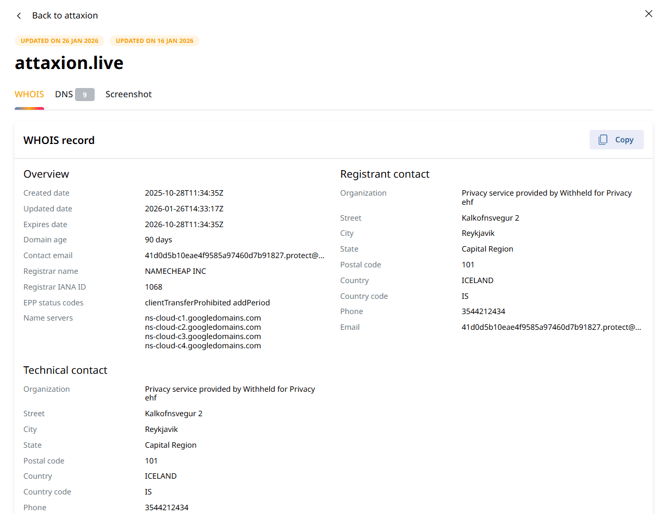
Attaxion searches for matching domains every five minutes using a rolling 365-day lookback period. For each discovered domain, the platform displays its WHOIS data, DNS records, and a website screenshot, if available.
What’s There in the “Impersonation” Tab?
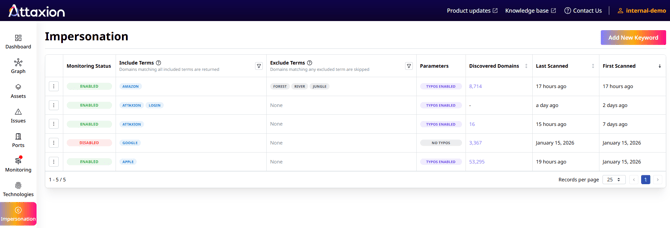
The “Impersonation” dashboard shows all keywords that are being monitored for your organization. If no keywords were added, the dashboard would be empty.
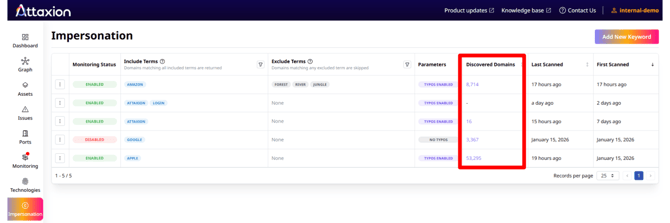
If you or someone else on your team has added one or more keywords previously, you will see the specific text strings that are included and excluded from monitoring, as well as their monitoring status (enabled or disabled).
The dashboard also shows whether typosquatting detection is turned on for each keyword, along with the number of discovered domains and the dates when each keyword was first and last scanned.
What Can You Do From the “Impersonation” Tab?
There are a number of actions you can take from the “Impersonation” tab, including the following:
1. Add keywords
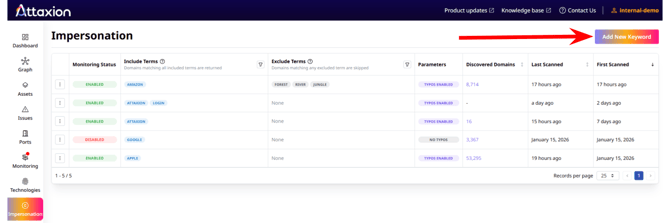
To add a keyword, click on the “Add New Keyword” button in the top-right corner of the dashboard.
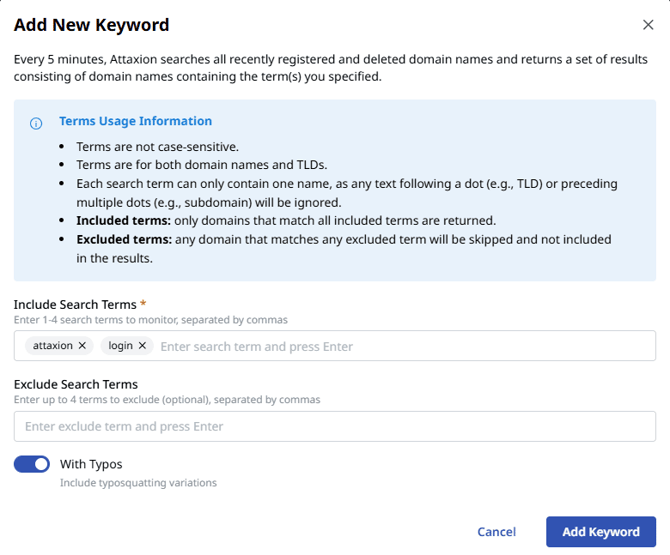
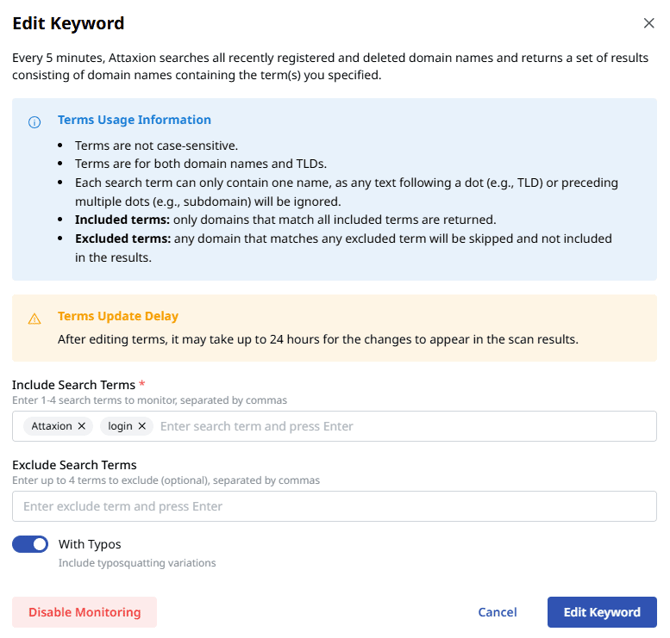
Type in the text strings you want to include, which tells Attaxion’s Domain Brand Monitoring technology to search for those terms across all newly registered and recently expired domains.
Note that for each monitor, the strings you include are combined with an “AND” operator. That means only domains that match all included terms would be shown. For example, if you add “peanut” and “jelly” as terms in one monitor, Attaxion will only be looking for domains that have both terms in their name, such as peanutbutterandjelly[.]com. Domains that have only one of the keywords, such as peanutsarethebest[.]com or jellybeansarethebest[.]com, will not be included.
You may also exclude certain strings so that Attaxion will not include domains containing those terms.
Note that exclusion relies on the “AND NOT” operator, which means that all domains containing at least one of the excluded keywords will not appear in the monitoring results. In the previous example, if we exclude “banana” and “cookies,” domains such as peanut-jelly-and-banana[.]com and peanut-jelly-banana-cookies[.]com will be excluded from the results.
If you want to include typosquatting detection, simply toggle the “With Typos” radio button at the bottom of the form.
Click “Add Keyword” to start tracking domains containing the specified search terms.
2. Edit and delete keywords
You can view, edit, and delete any keyword from the “Impersonation” dashboard by clicking the hamburger menu icon in the first column.
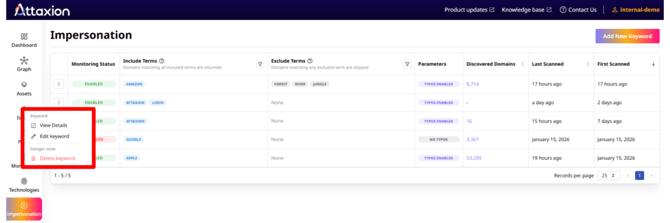
This is also where you can enable or disable a monitor by selecting “Edit” and clicking the “Disable” or “Enable” button at the bottom of the menu.
3. View all discovered domains
After adding keywords, you likely want to see what domains Attaxion has discovered. To do that, click on the number in the “Discovered Domains” column.
This action opens the “Impersonation settings” window, where you can see a list of discovered domains that contain your search term. You can also see the latest domain status (added, updated, or dropped), reachability status, and the date when the domain was last seen.
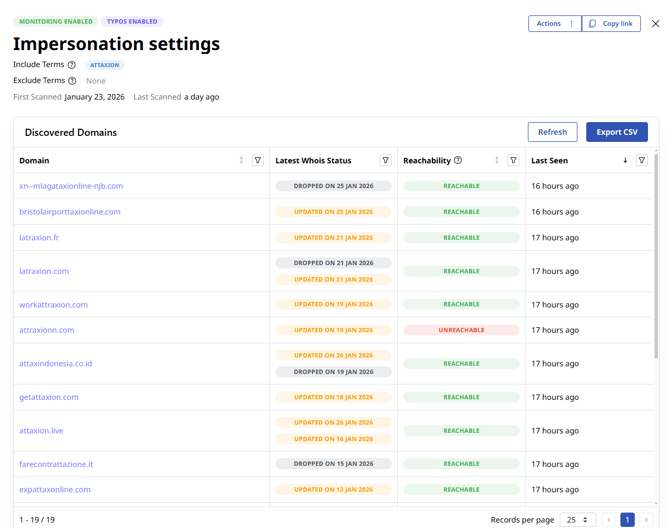
Clicking a domain name displays its WHOIS and DNS details, along with a screenshot of any hosted content, when available.